 Import Data Templates
Imports
Import bank statements into Business Central from CSV or Excel
The file your bank exports, turned into a payment reconciliation journal ready for matching.
Business Central imports bank statements natively when the bank feed is connected or the bank offers one of the supported exchange formats. Outside those cases, and they are frequent, the bank's online portal exports a plain CSV or Excel file, and the reconciliation starts with re-keying it or reshaping it to fit a format definition built by a consultant.
With Import Data Templates, that file is described once in a template like any other import. The import creates the payment reconciliation journal for the bank account, fills the statement lines, updates the statement ending balance and, when asked, runs Business Central's automatic matching at the end. A file that carries several bank accounts produces one journal per account.
What the file can look like
One row per statement line, the way banks export it: date, description, amount, often a value date and a reference. Debit and credit can be one signed column or two separate ones; dates and decimals follow the bank's locale; the account may be stated in the file or chosen when the import starts. None of that requires touching the file: the template describes it, transformation rules invert or combine amounts, and the bank account is an import parameter in the shipped example.
The sample below is the example shipped with the app.
Sample file: EX-BANK-STATEMENT.csv
- Sample file: EX-BANK-STATEMENT.csv
How the import works
-
Load the template
The ready-made template,
EX-BANK-STATEMENT, is created from the Template Examples page. For your bank's own layout, fill in the template with the structure of the file, use Read Structure from File, or let Copilot propose it from a statement file and review it before keeping it.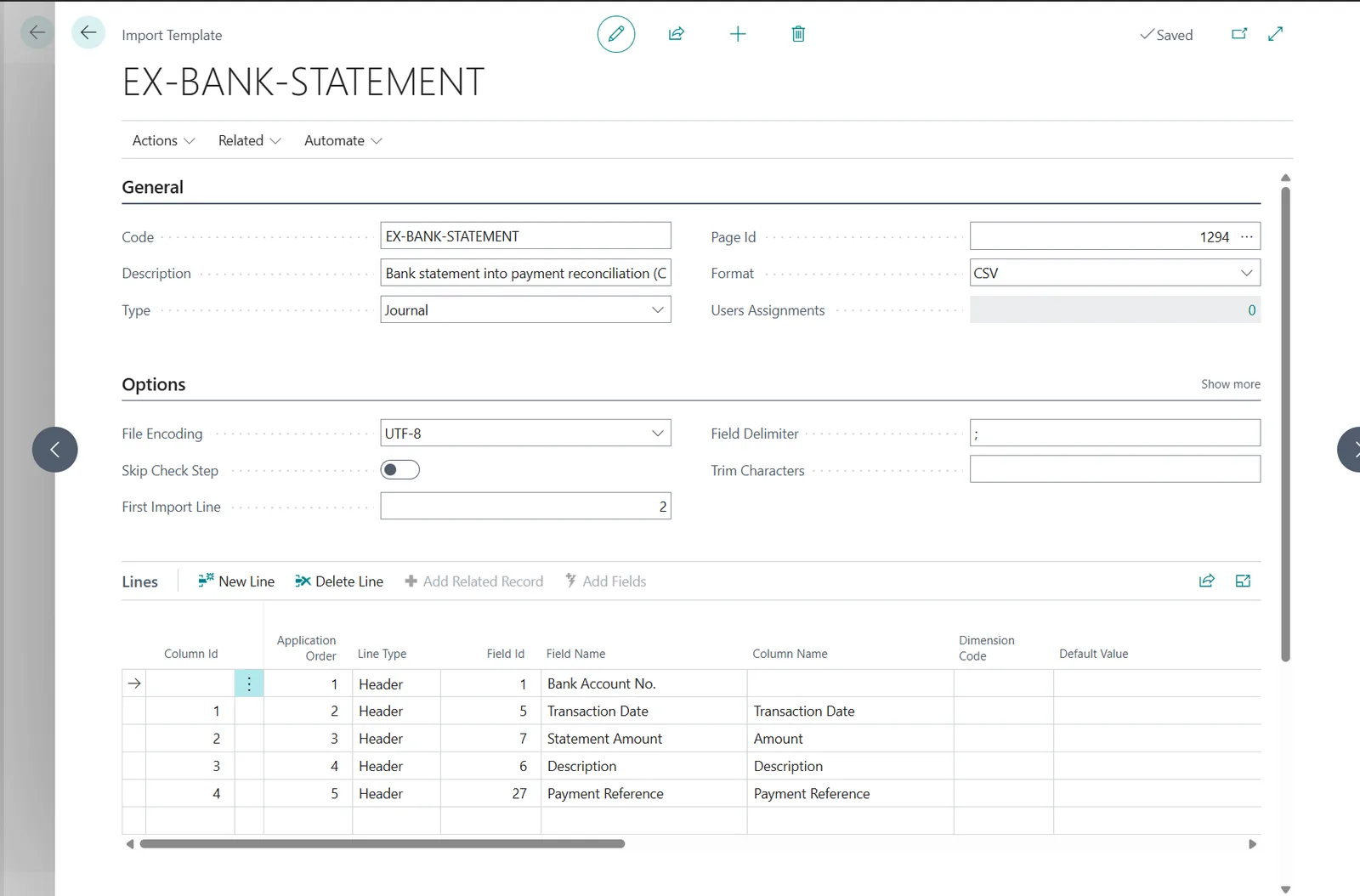
The EX-BANK-STATEMENT template: transaction date, amount, description and payment reference mapped from the bank file. -
Start the import
Choose Import Template on the Payment Reconciliation Journals page, pick the template and the file, and answer the import parameters, in the example the bank account. The check step validates the lines and reports problems with the line of the file before anything is written.
The flow: Import Template, the bank account asked as a parameter, the file, the imported statement. -
Reconcile
The journal exists for the bank account, the statement lines and the ending balance are filled, and the automatic matching has run when the template asks for it. What remains is what reconciliation is for: reviewing the proposed matches and handling the exceptions, not typing the statement.
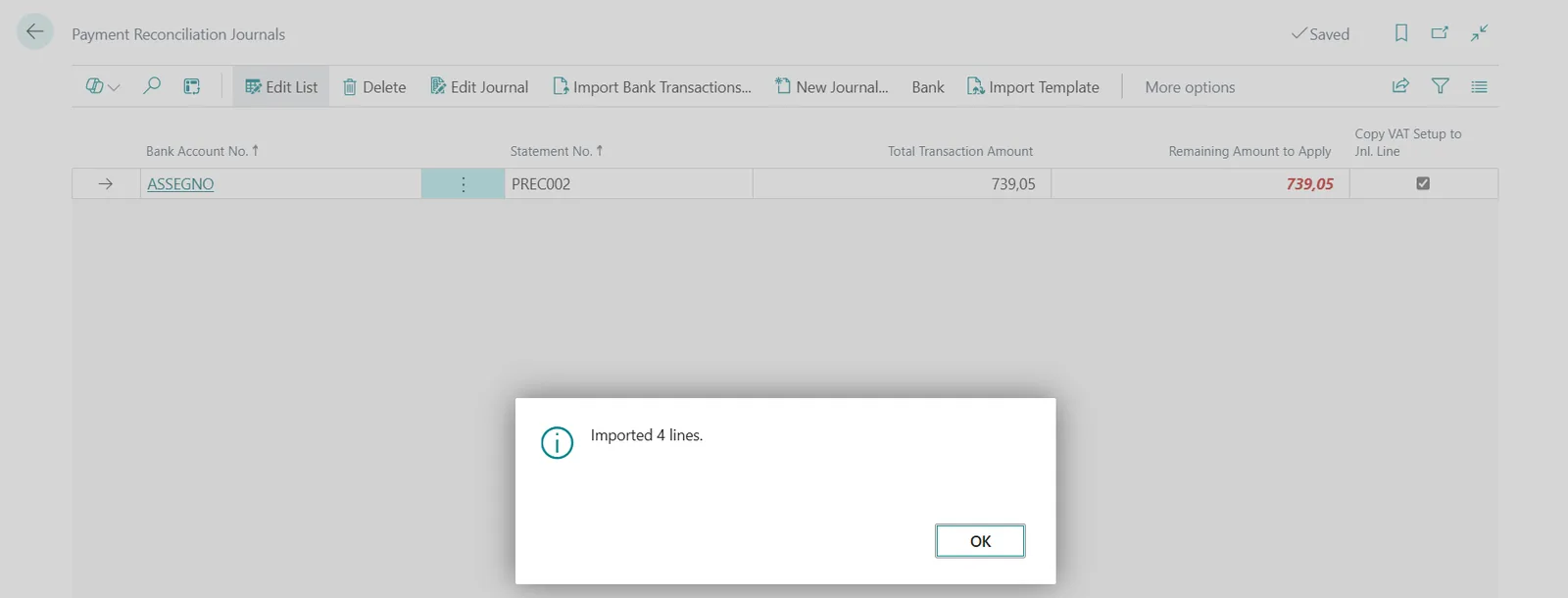
The journal created by the import: the statement, its total and the imported lines.
Beyond the basic file
- A new statement extends the picture: the import creates the journal when none is open for the account, or adds the lines to the one that is.
- Several accounts in one file: one payment reconciliation journal per account, from a single import.
- The bank delivers the file to a folder: with the automatic imports, a job queue imports each statement as it arrives, archives it on success and parks it with its error when something is wrong.
- Amount conventions differ per bank: transformation rules invert signs or combine debit and credit columns; mapping rules translate the bank's codes where needed.
Questions
Does this replace the bank feed integration?
No. When your bank is covered by a feed or a supported exchange format, use it. The template covers the banks that only export a file, without a format definition to build.
Does the automatic matching run on imported lines?
Yes, when the template is configured to run it at the end of the import; the matches are then reviewed in the journal as usual.
Can the statement arrive by itself, without a user?
Yes. A template watching a SharePoint, Azure Blob Storage or Azure File Share folder imports each file a job queue finds there, and the import history records every run.
Import Data Templates is available on Microsoft AppSource with a one-month free trial. Licenses are assigned per user in the Microsoft 365 admin center.