 Import Data Templates
Imports
Import purchase invoices into Business Central from Excel or CSV
Vendor invoices received as files, entered as purchase invoices with their lines instead of typed.
Purchase invoices usually arrive as documents. But in some flows they arrive as data: the export of a system that already recorded them, the monthly statement of fees and commissions from a marketplace or a franchisor, recharges from a group company on different software. Those rows get keyed into purchase invoices by hand.
With Import Data Templates, the file becomes purchase invoices in one import from the Purchase Invoices page, with their lines, the vendor's invoice number on each document, and the whole file validated by the check step first.
What the file can look like
One row per invoice line, grouped into invoices by the invoice-number column, or by vendor as in the shipped example file. Files printed from another system work as they are: title rows above the real headers are skipped by the template, header values can sit on fixed rows, and an Excel workbook can be read from one sheet or from all of them. Lines that are costs rather than items post to a G/L account set as a default value in the template.
The sample below is the shipped example: an Excel print with a title row, one invoice per vendor.
Sample file: EX-PURCH-INVOICE.xlsx
- Sample file: EX-PURCH-INVOICE.xlsx
How the import works
-
Load the template
Create
EX-PURCH-INVOICEfrom the Template Examples page, or describe the vendor's file in a template of your own: fill it in from the structure of the file, use Read Structure from File, or let Copilot propose it from a sample and review it before keeping it.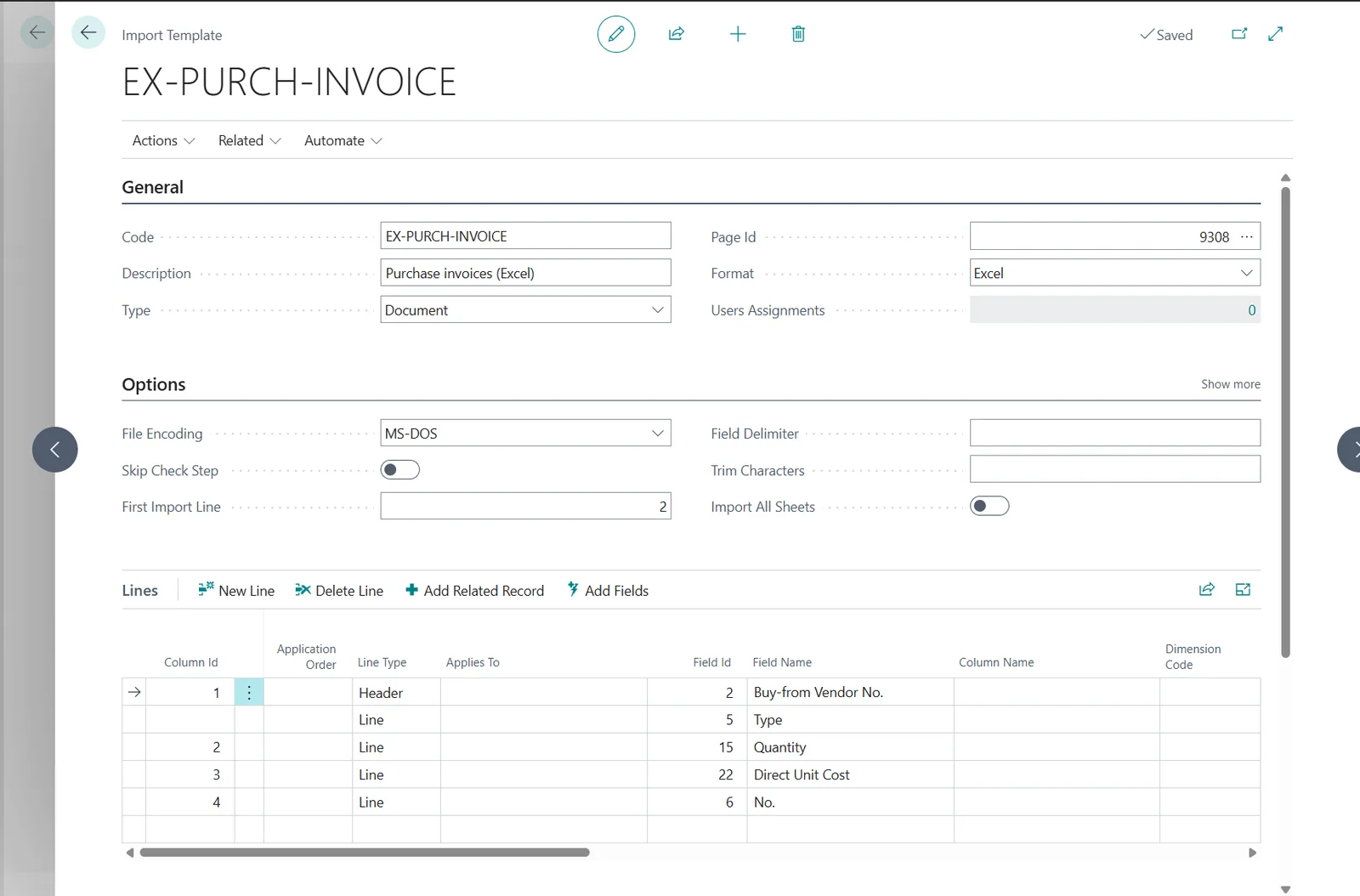
The EX-PURCH-INVOICE template: the vendor groups the rows into invoices; the lines carry type, quantity, cost and number. -
Start the import from Purchase Invoices
Choose Import Template on the Purchase Invoices list, pick the template and the file. The check step validates vendors, accounts, items and amounts, and lists every problem with the line of the file before any invoice is created.
The flow on Purchase Invoices: Import Template, the template, the file, the created invoices. -
Review and post
The invoices are in the list with their lines and the vendor invoice numbers, ready to be reviewed, approved and posted like any invoice entered by hand. The import history records the file, the user and the number of documents created.
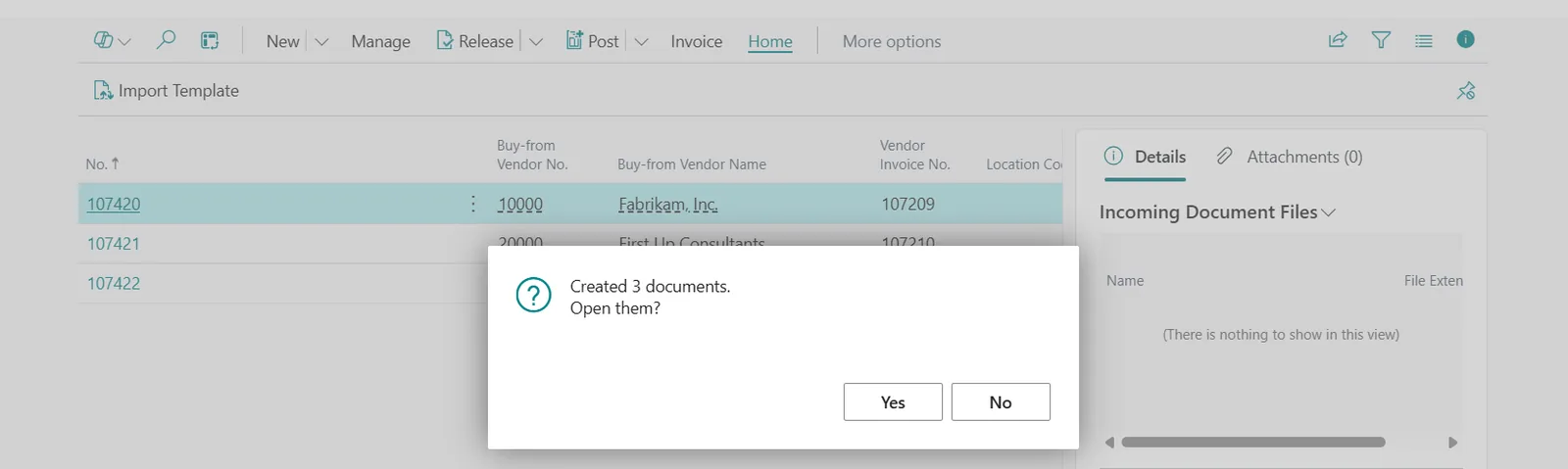
Three invoices from one file, each with its vendor invoice number.
Beyond the basic file
- Cost invoices without items: the G/L account of the lines is a default value in the template, or a column of the file mapped through an account mapping rule.
- The vendor's article codes on item lines: map the column to Item Reference No. and the vendor item references resolve the item.
- The posting date or the batch of the run: import parameters ask when the import starts.
- Recurring vendor files by e-mail or portal download: a ZIP imports several at once, and the automatic imports watch a folder when the files arrive on their own.
Questions
How does one file become several invoices?
A new invoice starts when the grouping column changes: the invoice number when the file carries one, the vendor in the shipped example file.
Is the vendor's invoice number kept?
Yes, mapped to Vendor Invoice No. on the header, where Business Central also uses it to catch duplicates at posting.
Can imported invoices go through approval?
Yes. The invoices are ordinary purchase invoices; approval workflows apply to them exactly as to manually entered ones.
Import Data Templates is available on Microsoft AppSource with a one-month free trial. Licenses are assigned per user in the Microsoft 365 admin center.